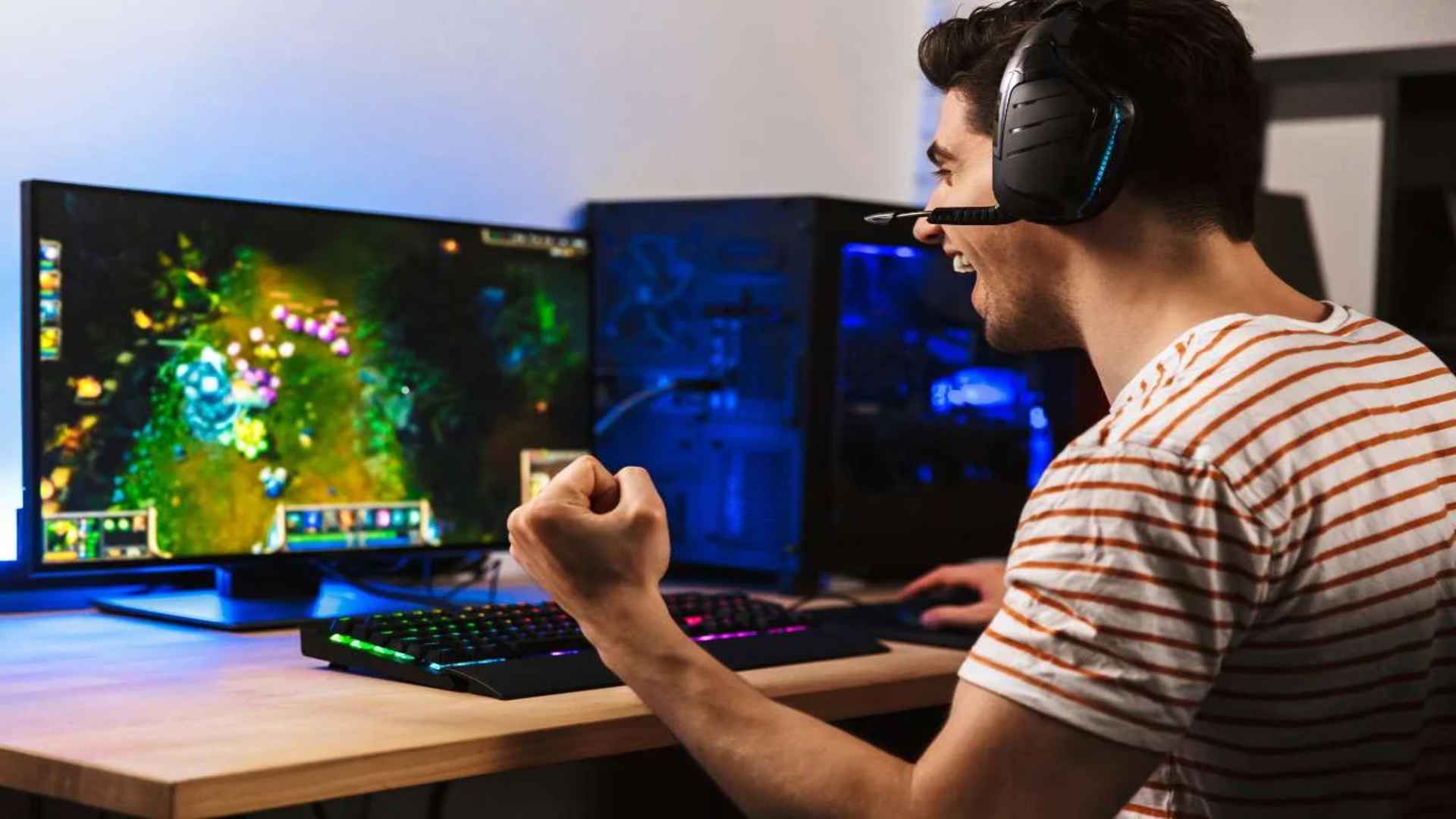
Monitoring system performance while running modern PC games or heavy graphics rendering tasks often reveals your graphics processing unit working at full capacity. Seeing your GPU usage hit 100 percent can cause concern for many user who fear hardware damage or system instability. However, understanding what this metric actually signifies can help you determine whether your system is performing optimally or experiencing underlying performance issues.
Understanding Full Graphics Processing Unit Utilization
High graphics card utilization generally indicates that your system is effectively leveraging the available hardware resources to deliver maximum visual output. When playing demanding titles or rendering 3D graphics, a GPU operating at maximum capacity means there are no processing bottlenecks in other components like your processor or RAM. This state allows your system to output the highest possible frame rates given your current graphics settings.
For hardware enthusiasts who follow daily gaming news, staying informed on performance optimization techniques is key to maintaining a smooth computing experience. Maximum hardware engagement is completely normal during intensive workloads as long as operating temperatures remain within safe parameters. Modern graphics hardware is designed by manufacturers to safely operate at high utilization levels for extended periods.
Distinguishing Between GPU Utilization and Overheating
While maximum processing utilization is safe by design, high thermal levels can lead to hardware throttling or long-term damage if left unmanaged. Utilization refers solely to how much computing capacity is being utilized, whereas temperature measures the physical heat generated by the graphics chip. Monitoring software should always be used to check that thermal output remains below the threshold specified by your hardware manufacturer.
If high usage is accompanied by abnormal temperatures, insufficient airflow within your desktop chassis or dust accumulation on cooling fins could be the core issue. Ensuring adequate case ventilation and maintaining clean cooling fans allows your graphics hardware to run at max load without thermal throttling. Replacing aging thermal paste can also dramatically improve heat dissipation for older hardware components.
Scenarios Where Maximum Usage May Signal Problems
Although 100 percent usage is expected during heavy gaming sessions, seeing maximum utilization while your computer is idling on the desktop is a sign of trouble. Background processes, unoptimized software applications, or even malicious cryptocurrency mining software can secretly consume graphics hardware resources. Checking your Task Manager or specialized hardware monitoring utilities helps identify unauthorized programs running in the background.
Additionally, uncapped frame rates in light titles or main menus can cause your graphics processor to overwork unnecessarily. Enabling frame rate limits or activating vertical synchronization within your display settings helps reduce unnecessary power draw and heat generation. Managing these software settings ensures your system draws maximum power only when actively rendering complex game scenes.
How to Balance System Performance and Energy Draw
Optimizing display settings in modern games allows you to strike a healthy balance between visual quality and hardware load. Lowering demanding features like ray tracing, volumetric fog, or resolution scaling can decrease overall workload and power consumption. This strategy keeps your graphics card running cooler and quieter while preserving smooth gameplay performance across various software titles.
Ultimately, high graphics card utilization is a sign of an efficient system free of component bottlenecks during intensive tasks. Keeping hardware drivers updated and maintaining a clean operating environment ensures your hardware remains healthy over time. By paying attention to operating temperatures rather than just load percentages, you can enjoy peak computing performance with peace of mind.